 Proudly Made in America

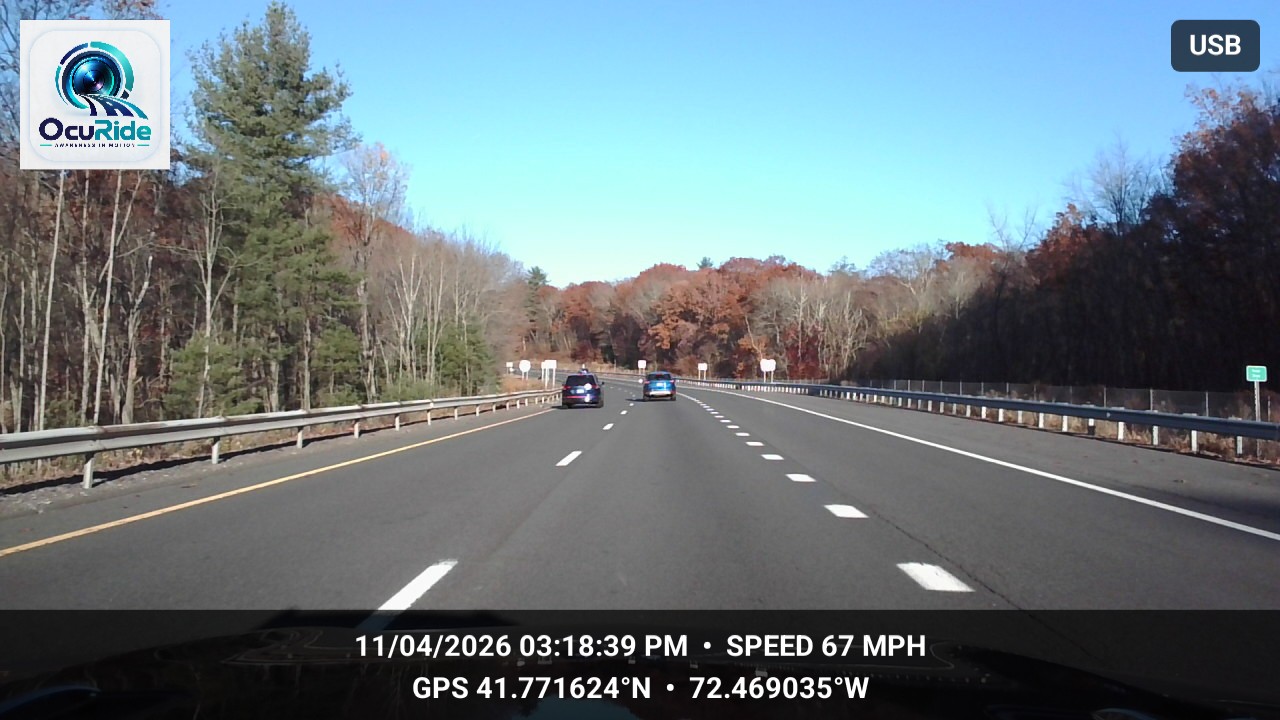
You remember the stretch of road. You remember roughly when it happened. What you do not remember is the name of the video file.
Trip replay connects available recordings with the journey they belong to. Instead of treating each clip as an isolated file, you can return to a trip and use its available context to find the part you want to revisit.
Begin with the right journey
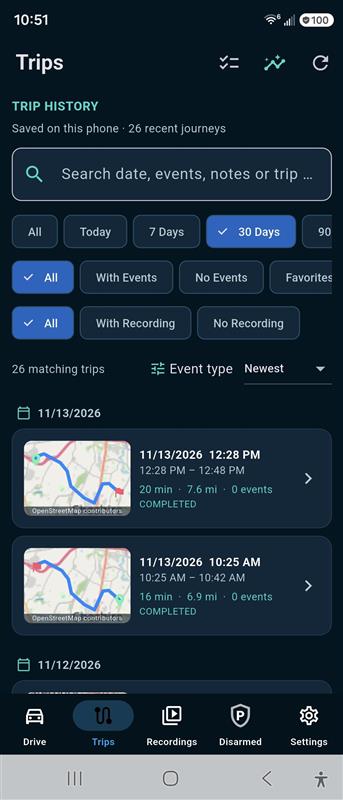
A trip list is a useful starting point when a phone has recorded several drives. Dates and times help separate a morning commute from an afternoon errand or a weekend road trip.
OcuRide’s Trips screen brings recent journeys into a searchable list. The app view includes date ranges and filters for such distinctions as trips with events or recordings. Those controls help narrow the search before you open a particular journey.
Use the context that was actually captured
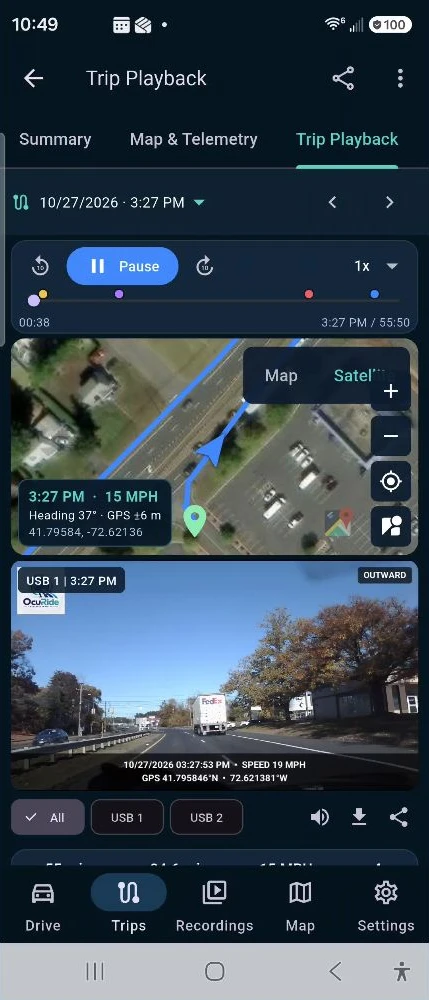
A route can help you recognize a journey, while the trip’s available details help orient you within it. A timestamp or a saved event may bring you closer to the moment you remember.
That context is valuable because memory is often approximate. You may remember passing a junction rather than an exact time. Or you may know the date but have several recordings from that day.
GPS coverage and video coverage are different things. A route trace does not establish that every part of the journey has playable footage. Review the available recording and any coverage limits shown in the app.
A saved moment is a useful starting point
Event marking helps identify a part of the drive to return to. It may be an unexpected traffic event, an observation you want to review later or a pleasant moment worth keeping.
Look around the marker, too. A clip’s lead-in and aftermath can provide the sequence that makes the moment understandable. If you export a shorter selection, retain the original when the fuller context matters.
The OcuRide recording, event marking and replay guide explains how these activities fit together. They answer different questions: what was captured, what was marked and what can be reviewed now.
Try a simple retrieval exercise
- Choose a familiar trip: use a short, ordinary journey you can recognize.
- Narrow the list: start with the date and use relevant available filters.
- Open the journey: compare its details with the drive you remember.
- Review the footage: confirm what is actually playable around the chosen moment.
- Keep what matters: use the supported save or export workflow, then check the resulting file.
Do this after stopping safely. A retrieval tool should reduce the work after a drive, while leaving your attention on the road during it.
Useful on good days as well
Trip replay is not only about an incident. A scenic approach, an unfamiliar road or a journey shared with family may be the part you want to see again.
Finding that moment becomes easier when the recording belongs to a recognizable trip. The benefit is a connection between the route you took and the available view from the drive.
From replay to a copy you can keep
Being able to play a recording in the app does not establish that it exists anywhere else. If the clip matters, check local retention and any supported separate-copy workflow.
The OcuRide storage guide separates local recording from optional sync. Check a completed transfer before treating a file as backed up.
Questions drivers ask
Can trip replay recreate missing video?
No. Replay can show the recordings and trip context that are available. A route, event marker or timestamp cannot recreate footage that was never recorded or is no longer retained.
Is trip replay the same as live tracking?
No. Reviewing a saved journey is different from broadcasting a live location. Use the supported release information to understand what your app stores and displays.
Capture the road. Keep the useful moments. Revisit the journey. Explore OcuRide and request early access.