 Proudly Made in America


A dashcam video can be recorded without being kept somewhere you can find it later. After a moment worth keeping, three questions matter: is the file still there, can you open it, and is there another copy somewhere else?
Recorded, saved and backed up describe different stages. Understanding them helps you choose a dashcam setup and know what to check after a journey. This applies to dedicated cameras and smartphone dash cam apps alike.
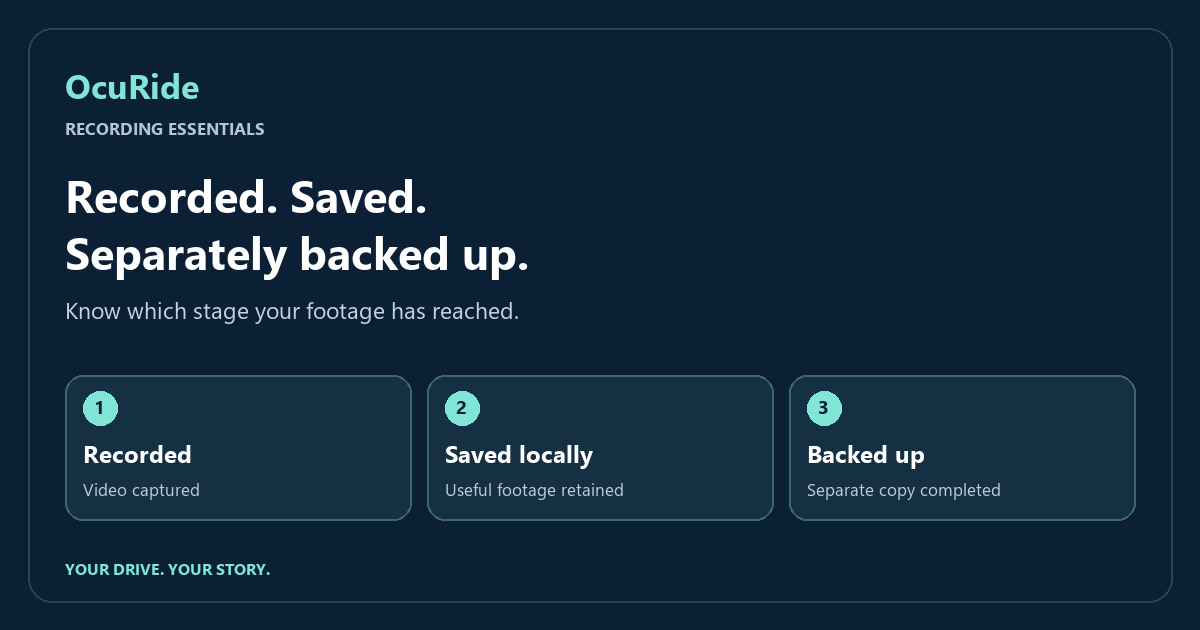
Recorded: the camera captured video
A recording session creates video on a device. That is the first step. It does not necessarily mean that every minute will remain available indefinitely.
Storage capacity, recording settings and the product’s retention behavior matter. Some systems cycle through older footage. Others require the user to clear space. Check your actual device and app settings rather than assuming all footage is kept.
Saved: a useful clip was retained
Saving or marking a moment is about keeping the part you expect to need. The name of the action varies by product, so check what its “save,” “event” or “protect” control actually does.
For example, an event marker might identify a point in a journey. The useful next question is whether the available video around that point has also been retained. A marker without an accessible recording cannot show what the camera saw.
Open the saved clip after a short test drive. Check the beginning and end, the view and whether the moment can be found again without repeating the search.
Dashcam video backups: a separate copy finished transferring
A backup creates another copy at a separate destination. A file still on the recording phone is a local copy, even if the app shows it in a different screen.
“Selected for upload,” “waiting for Wi-Fi” and “uploading” describe work that has not finished. Before relying on a separate copy, check the completion status and confirm that the destination file opens.
A connection failure, account sign-in problem or full destination can interrupt a transfer. Know how your particular setup reports those conditions. Do not delete the only local copy simply because a sync option is switched on.
A practical example after the drive
- Locate: find the correct journey and available clip.
- Retain: keep the relevant sequence, including useful context before and after it.
- Check: play the original and confirm it contains what you expected.
- Copy: use the supported export or sync method to create a separate copy.
- Verify: open the destination file before treating the backup as complete.
Those checks are useful even on an ordinary day. A short practice recording is a better time to learn the workflow than a stressful moment when you urgently need a file.
Phones and dedicated cameras both need a plan
Whatever device you choose, check where the recording is stored and how you would access it if the recording device became unavailable. For footage you want to keep, confirm that a separate copy has finished transferring and that the destination file opens.
The useful comparison is the complete workflow: capture quality, retention, access, transfer status and recovery. No device label alone establishes that your footage has another usable copy.
How to understand OcuRide storage and sync
OcuRide’s storage direction combines local recording with optional Google Drive sync. Supported release features, configuration and connection requirements govern what can transfer and when.
Read the OcuRide local recording and Google Drive sync guide for the published explanation. Confirm your release’s actual controls and status before relying on a transfer. There is no promise here of instant upload, continuous cloud recording or guaranteed survival after an incident.
Questions drivers ask
Is a saved dashcam clip automatically backed up?
Only if your supported setup actually completes a separate copy. Saving locally and transferring to a different destination are different operations.
Can I remove the original after turning on sync?
First confirm the destination file exists, opens and contains the footage you need. Keep important originals according to your own retention needs and any applicable claim requirements.
Capture the road. Keep the useful moments. Revisit the journey. Explore OcuRide and request early access.