 Proudly Made in America

A smartphone dashcam turns a compatible phone into a road-recording camera. Recording, marking an event and replaying a trip answer different questions: what the camera saw, which moment matters and where it fits within the journey. OcuRide is developing those connected experiences.
Smartphone dashcam recording captures the sequence
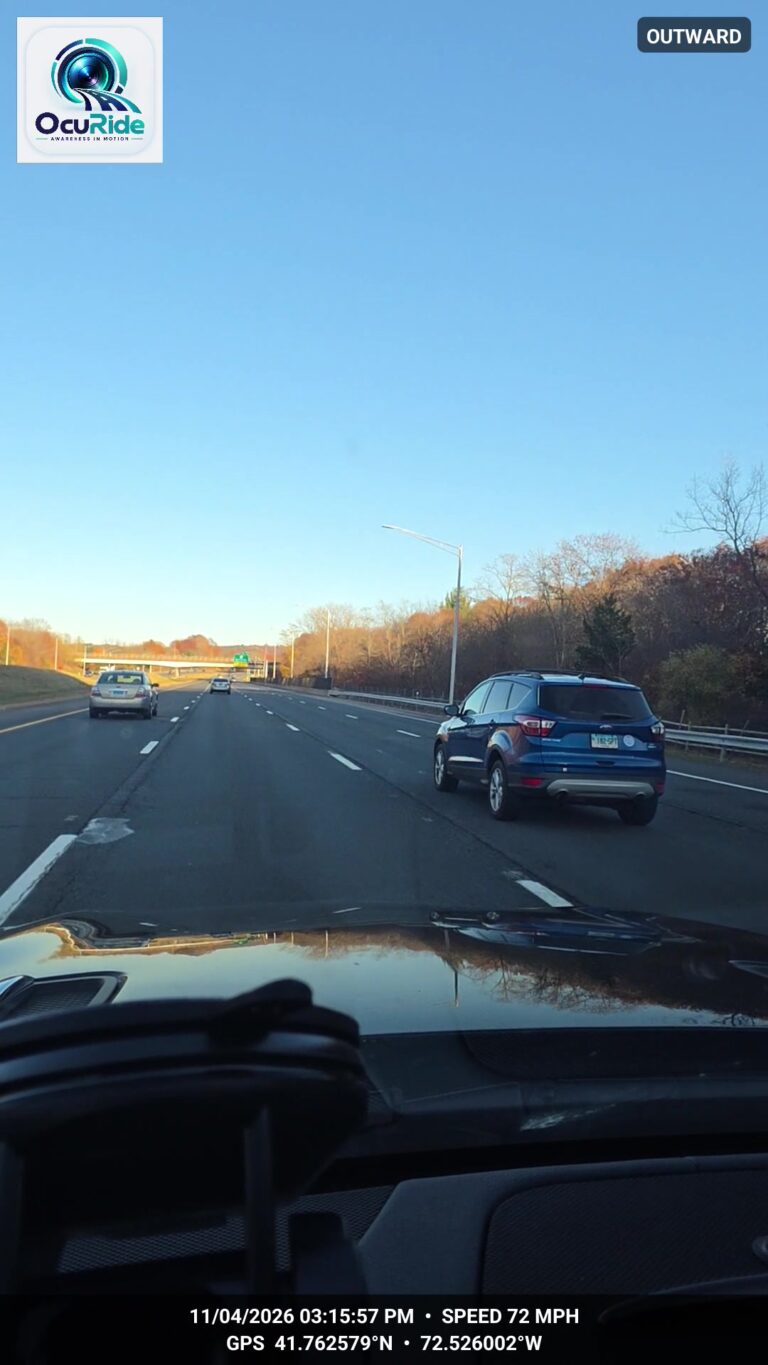
Road recording creates a record from the camera’s perspective. The view depends on the phone, camera position and supported setup. It can show only what that camera captured; it does not provide a complete account of everything around the vehicle.
The OcuRide website shows an actual development recording. It makes the core idea concrete without treating every phone, camera combination or release as already verified.
Marking gives a moment a place
Event marking identifies a point worth returning to. It helps you find the detail you want to review instead of treating the whole drive as one undifferentiated file.
The amount of video available before and after a marker depends on whether recording was active and on the supported event workflow. Marking a moment does not create footage the camera never recorded. Exact event coverage will be confirmed for the release.
Replay brings the journey back into view
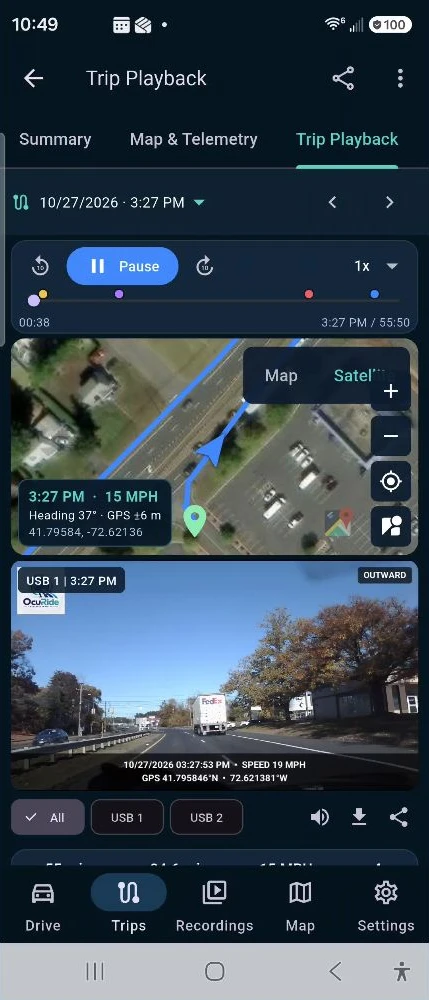
Trip replay puts a recorded moment alongside trip context. The historical OcuRide demonstration connects video and route information, so the moment can be reviewed as part of a journey. It is a development demonstration, with current release compatibility still to be confirmed.
Can I use my phone as a dash cam?
A phone dash cam app uses a compatible smartphone’s camera to record the view ahead. An app for a separate dash camera instead connects to dedicated hardware. When comparing options, check which setup you are choosing, what equipment it needs and which features work on your phone. OcuRide is being developed as a smartphone dash cam and vehicle companion; its release details will identify supported setups.
Phone dash cam setup: mount, power and storage
Before a drive, secure the phone in a suitable mount, check the camera view and review power and available storage. Configure the app while parked and review a short test recording before relying on the setup. Recording quality and duration can vary with the device and conditions. Consult the phone manufacturer’s temperature guidance; do not assume an older phone will suit every journey.
What should I check about loop and background recording?
Loop recording generally replaces older footage as allocated storage fills. Background recording concerns whether capture continues while another app is on screen. These are different capabilities, and neither should be assumed from the words “dash cam app.” For OcuRide, confirmed recording modes, navigation behavior and supported camera combinations will be published with release details. A GPS trip log also does not necessarily include video: check what was actually recorded.
Android dash cam or iPhone dash cam: check the setup
If you are comparing an Android dash cam app with an iPhone dash cam app, look beyond the camera name. Check the supported device, mounting position, power supply, storage and temperature guidance. Google explains Android app permissions, while Apple provides iPhone temperature guidance. These device considerations apply independently of any particular dashcam app.
Android phones are the initial OcuRide early-access focus. Apple iPhone and iOS timing will be announced separately. The supported phone models, camera combinations and operating-system versions still need release confirmation.
Use the right expectation
- Recording: return to what the camera saw.
- Event marking: identify a moment worth another look.
- Trip replay: review the moment with the trip context available.
A recording can help you explain your perspective. It does not determine fault or guarantee an insurance outcome. Explore the OcuRide experience or see OcuRide development imagery.
Continue with our guides to dashcam storage and Google Drive sync or vehicle document scanning and renewal reminders.