 Proudly Made in America

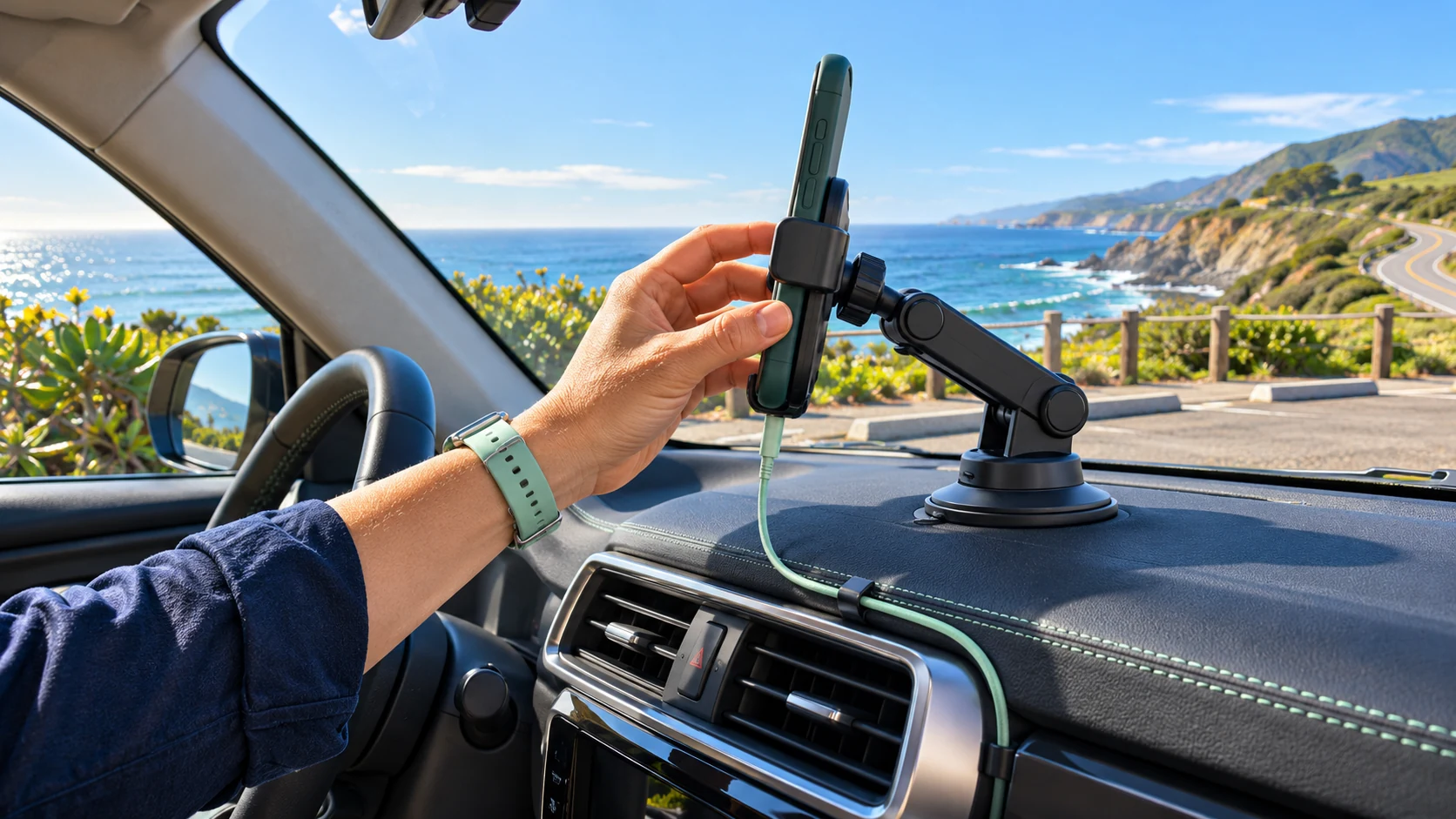
The best time to discover a loose mount, blocked camera or full storage is before you need a recording. A short, repeatable check can make those basic problems easier to spot.
Use this recording readiness checklist before the vehicle moves. It works as a planning aid for a smartphone dash cam app or a dedicated camera. It is a check of an existing setup, not a claim that every installation can be completed in a few minutes.
1. Mount and view
- Is the device secure in a suitable mount?
- Is the camera view clear, with the lens unobstructed?
- Does the setup leave the driver’s view, controls and airbag areas clear?
- Have you checked the applicable mounting rules and equipment instructions?
Use the actual camera preview to check framing. A device can point in the right general direction while recording too much dashboard or too little road.
2. Power and device condition
- Is suitable power connected, if needed for the intended drive?
- Are cables secured away from driving controls?
- Are there any battery, temperature or operating warnings to address?
A charging indicator confirms a power condition, not that the camera is recording. Treat the recording status as its own check.
3. Storage and retention
- Is there usable local storage for the planned recording?
- Do you understand how older footage is retained or cleared?
- Have important clips from a previous drive been kept?
Do not clear a useful original because you assume another copy exists. Check any separate destination first.
4. Recording and camera selection
- Does the app or camera show the expected recording state?
- Is the correct view or supported camera selected?
- Have you made a short test and checked that it plays?
For a new phone, mount, camera connection or app release, allow time for a fuller test. Confirm the actual behavior you need rather than relying only on the settings you selected.
5. Saved clips and separate copies
- Do you know how to find the recording after the drive?
- Do you know what marking or saving an event retains?
- If optional sync is configured, can you tell pending work from a completed transfer?
The difference matters: a recorded file, a locally saved clip and a completed separate backup are different stages. The OcuRide storage guide explains those checks.
A compact version to keep
Print this list or save it with your travel notes. Complete it while parked, then put the phone controls aside.
- ☐ Secure mount and clear camera view.
- ☐ Suitable power and clear cable routing.
- ☐ Usable storage and known retention settings.
- ☐ Expected recording state and supported camera.
- ☐ Test clip opens and plays.
- ☐ Important prior clips retained; separate copies checked.
- ☐ Setup finished before moving.
After the drive
Stop safely before reviewing footage. Find the trip, retain anything important and confirm any separate copy you need. If the drive exposed a problem, resolve it before the next journey.
For OcuRide, start with the smartphone recording and trip replay guide. Check current early-access information for platform and configuration support. A clear routine helps connect the product’s controls with the result you actually want: footage you can find and use.
Questions drivers ask
Should I check recording while driving?
Finish setup and checks while parked. If a problem needs attention, stop safely before using the controls.
What should I check after changing my phone or mount?
Review compatibility and mounting again, check the camera framing and power connection, then make a short test recording. Open the saved clip to confirm the new setup works as expected.
Capture the road. Keep the useful moments. Revisit the journey. Explore OcuRide and request early access.